How to Take Product Photos with Your Phone: Complete UAE Seller Guide
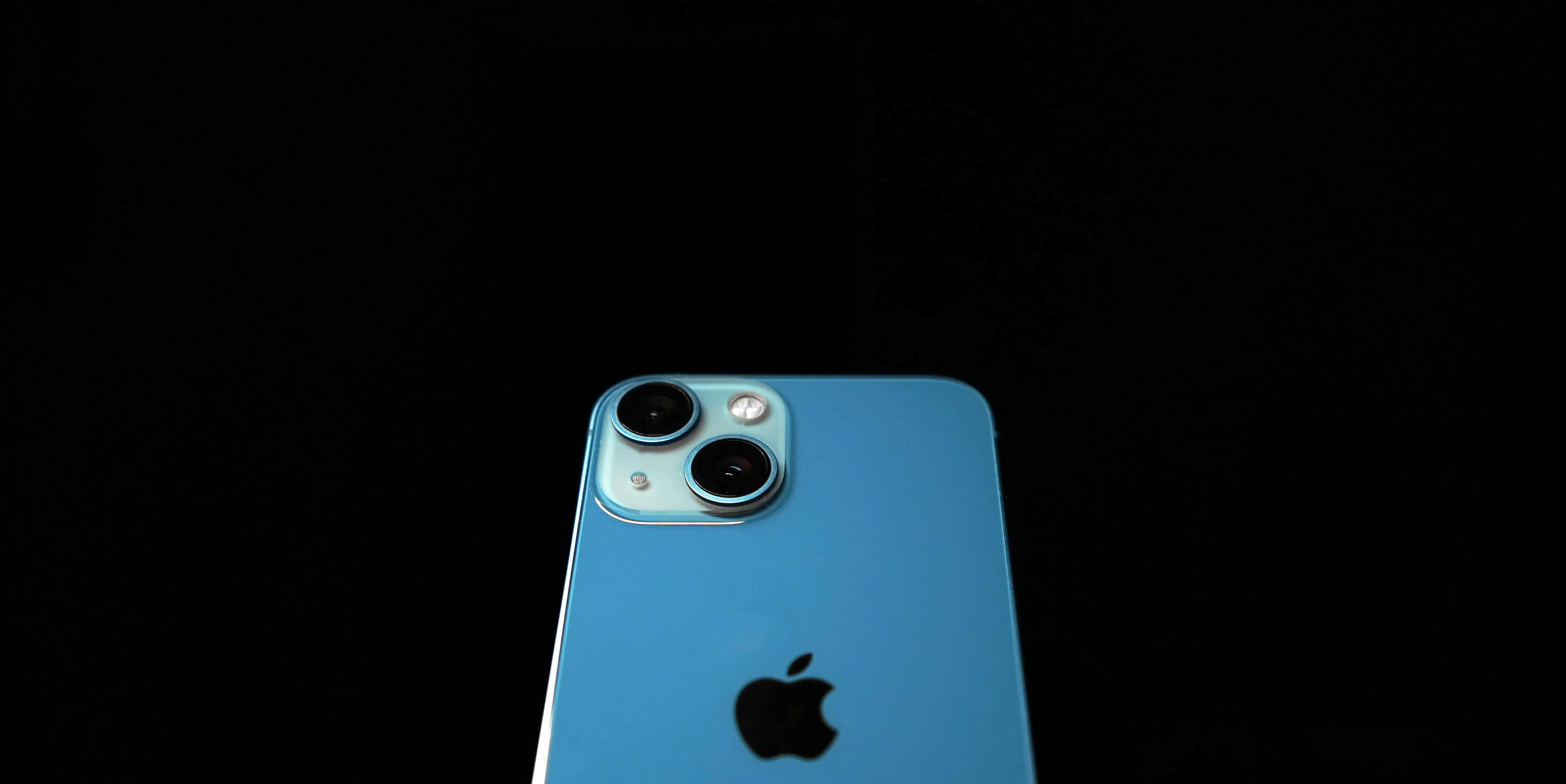
You don't need a professional camera to take product photos that sell. Your smartphone—whether it's an iPhone 12 or newer, Samsung Galaxy, or Google Pixel—has the capability to capture images that meet Amazon UAE and Noon requirements and convert browsers into buyers.
This guide is built specifically for UAE sellers. You'll learn how to work with the region's bright natural light, set up a DIY studio in your home or office, and capture marketplace-ready images without expensive equipment. No photography experience required.
What You Actually Need
Your Smartphone
Any smartphone from the past 3-4 years will work. Here's what matters:
- 12 megapixels or higher: This is standard on iPhone 12+, Samsung Galaxy S20+, Google Pixel 4+, and most mid-range phones from 2021 onward
- Manual exposure control: The ability to lock focus and adjust brightness (built into most camera apps)
- Clean lens: Wipe your camera lens before every shoot—fingerprints are the most common cause of blurry product photos
Best phones for product photography in 2026:
- iPhone 14/15/16 series (excellent for consistent color accuracy)
- Samsung Galaxy S23/S24 series (great for detail and zoom)
- Google Pixel 7/8 series (best computational photography)
Essential Equipment (Under AED 150 Total)
| Item | Price Range (AED) | Where to Buy in UAE |
|---|---|---|
| Smartphone tripod with mount | 25-75 | Amazon.ae, Noon, Carrefour |
| White foam board (A2 size, pack of 3) | 15-30 | Office supplies, Amazon.ae |
| White poster paper roll | 20-40 | Staples, Virgin Megastore |
| Clip-on macro lens (optional) | 30-80 | Amazon.ae, Noon |
Total startup cost: AED 60-150
That's it. You don't need a lightbox, ring light, or professional backdrop to get started. Natural light from a window and white foam board will produce better results than cheap artificial lighting.
Setting Up Your DIY Photo Studio
Finding the Right Location
Look for a spot in your home or office with these characteristics:
- Large window: The bigger the better. North-facing windows provide the most consistent light throughout the day
- No direct sunlight: In the UAE, direct sun creates harsh shadows. You want bright, diffused light
- Space to move: You need room to position your tripod and adjust angles
- Neutral walls: White or light gray walls help bounce light; colored walls can create color casts on your products
UAE-specific tip: The intense Dubai and Abu Dhabi sun can be too harsh even through windows. Shoot on slightly overcast days, early morning (7-9 AM), or use sheer white curtains to diffuse the light. Avoid shooting between 11 AM and 3 PM when the sun is directly overhead.
Creating Your Backdrop
For marketplace-compliant images, you need a clean white background. Here are two simple setups:
Option 1: The Sweep (Best for small-medium products)
- Tape a large sheet of white poster paper to a wall
- Let it curve down onto your table or surface—don't crease it
- The curve eliminates the visible line where wall meets table
- Position your product on the paper, about 30-50cm from the wall
Option 2: The Box Setup (Best for very small products)
- Cut the flaps off a cardboard box
- Line the inside with white paper
- Place it on its side near your window
- The box contains and softens the light
Using Foam Board Reflectors
This is the secret to professional-looking DIY product photos. A white foam board bounces light back onto your product, filling in shadows and creating even illumination.
How to use it:
- Position your product near the window (light source on one side)
- Place the white foam board on the opposite side of the product
- Angle it to bounce window light back onto the shadowed side
- Move it closer for more fill light, further away for more shadow definition
You can also use aluminum foil wrapped around cardboard for a stronger reflection effect, but white foam board gives softer, more natural results.
Camera Settings That Matter
Essential iPhone Settings
Before you shoot:
- Go to Settings → Camera → turn ON "Grid" (helps you keep products centered and straight)
- Set format to "Most Compatible" for JPEG files that work on all platforms
- Turn OFF HDR for product photos (it can create unnatural-looking images)
- Turn OFF Live Photos (wastes storage and can cause blur)
While shooting:
- Lock focus and exposure: Tap and hold on your product until "AE/AF LOCK" appears. This prevents the camera from refocusing or changing brightness mid-shoot
- Adjust exposure: After tapping to focus, slide up/down on the sun icon to brighten or darken the image
- Use the timer: Set a 3-second timer to avoid camera shake when pressing the shutter button
- Never use zoom: Digital zoom reduces image quality. Move your phone closer instead
- Never use flash: It creates harsh, unnatural lighting and color distortion
Essential Android Settings
Before you shoot:
- Open Camera → Settings → turn ON grid lines
- Set resolution to maximum available
- Turn OFF beauty mode, filters, and scene optimization
While shooting:
- Lock focus: Tap and hold on your product to lock focus (varies by phone model)
- Manual mode: If available, use Pro/Manual mode to control ISO (keep at 100-200 for least noise)
- Exposure compensation: Adjust to brighten images if your white background appears gray
The White Balance Problem
One of the biggest issues with smartphone product photography is incorrect white balance—your white background might look yellow, blue, or gray.
How to fix it:
- Shoot near a window with consistent daylight
- Avoid mixing light sources (don't combine window light with room lights)
- If your camera app allows manual white balance, set it to "Daylight" or around 5500K
- Fix remaining color casts in editing (covered below)
Shooting Your Products
The Basic Shot List
For marketplace listings, capture these angles for every product:
- Front/Hero shot: Straight-on view, product centered, this becomes your main image
- Back view: Show labels, tags, or back details
- Side views: Left and right profiles
- Detail shots: Close-ups of textures, stitching, buttons, logos
- Scale shot: Product next to a common object (hand, coin, ruler) for size reference
For fashion/clothing, add:
- Flat lay (garment laid flat, shot from above)
- Interior details (lining, pockets, labels)
For electronics, add:
- All ports and buttons visible
- Screen turned on (if applicable)
Framing and Composition
Rule of 85%: Amazon requires your product to fill at least 85% of the frame. Frame your shots tightly, but leave a small margin around all edges.
Keep it straight: Use the grid lines on your phone to align your product. Crooked products look unprofessional and can get rejected.
Eye-level shooting: For most products, position your camera at the same height as the center of your product. This creates the most natural, appealing view.
Consistency matters: Keep your phone in the same position on the tripod and rotate the product to show different angles. This keeps all your images uniformly framed.
Common Mistakes to Avoid
| Mistake | Why It's a Problem | How to Fix It |
|---|---|---|
| Using digital zoom | Dramatically reduces image quality and resolution | Move your phone closer to the product |
| Hand-holding the phone | Causes blur, especially in lower light | Use a tripod or prop your phone against a stable object |
| Using flash | Creates harsh shadows and distorts colors | Use natural window light instead |
| Shooting in direct sunlight | Creates hard shadows and overexposed areas | Use diffused light (overcast, sheer curtain, early morning) |
| Gray or off-white background | Amazon will reject images that aren't pure white (RGB 255,255,255) | Overexpose slightly, fix in editing |
| Product not filling frame | Amazon requires 85% frame fill | Crop closer or move phone nearer to product |
| Dirty or damaged product | Every flaw shows in photos | Clean, steam, remove tags before shooting |
| Mixed lighting | Creates color casts that are hard to correct | Turn off all room lights, use only window light |
Editing Your Photos
Best Free Editing Apps
Snapseed (iOS & Android) - Recommended for beginners
- Free, no watermarks, intuitive interface
- Excellent white balance correction
- Selective editing for fixing specific areas
- Healing tool for removing dust spots or small imperfections
Adobe Lightroom Mobile (iOS & Android)
- Free version has all essential tools
- Best for batch editing multiple images with consistent settings
- Professional-level color correction
- Can save presets for your product photography style
Canva (iOS & Android)
- Easy background removal tool
- Good for adding infographics to secondary images
- Templates for lifestyle compositions
Essential Edits for Every Product Photo
Step 1: Crop and straighten
- Crop to square (1:1) for marketplace compatibility
- Use the straighten tool to fix any tilting
- Ensure product fills 85%+ of the frame
Step 2: Fix the white background
- Increase exposure/brightness until the background appears pure white
- Use the "White Balance" or "Temperature" tool to remove any color cast
- In Snapseed: Use "Selective" tool to brighten only the background area
Step 3: Adjust product appearance
- Increase contrast slightly to make the product pop
- Increase saturation slightly if colors look dull
- Use sharpening tool sparingly (over-sharpening looks unnatural)
Step 4: Remove imperfections
- Use healing/spot removal tool for dust or small blemishes
- Clean up any visible lint or scratches
Step 5: Export correctly
- Export as JPEG at maximum quality
- Resolution should be at least 1000 x 1000 pixels (2000 x 2000 recommended)
- File size under 10 MB
Getting a Pure White Background
This is the most important edit for Amazon UAE compliance. Your background must be RGB (255, 255, 255)—pure white, not light gray.
In Snapseed:
- Open Tools → Selective
- Tap on the background area
- Pinch to expand the selection radius
- Swipe up to increase brightness until the background is white
- Repeat for all background areas if needed
In Lightroom Mobile:
- Open the image and go to Light panel
- Increase Exposure until background appears white
- Reduce Highlights if the product becomes overexposed
- Use the Masking tool to isolate and brighten only the background
Pro tip: If you can't get a pure white background through editing, AI-powered background removal services can do this automatically. Many sellers find it more efficient to capture good quality images with decent lighting and let AI handle the background perfection.
Preparing Images for Marketplaces
Amazon UAE Requirements Checklist
Before uploading any image, verify:
- ☐ Background is pure white (RGB 255, 255, 255)
- ☐ Product fills at least 85% of the frame
- ☐ Resolution is at least 1000 x 1000 pixels (2000 x 2000 for zoom)
- ☐ File is JPEG format, under 10 MB
- ☐ No text, logos, or watermarks on main image
- ☐ Entire product is visible (no cropping at edges)
- ☐ Image is sharp and well-lit
Noon Requirements Checklist
- ☐ High resolution, clear image
- ☐ Clean background (white or neutral)
- ☐ Product clearly visible from multiple angles
- ☐ No watermarks or logos
- ☐ Professional appearance
Pro tip: If your images meet Amazon UAE's strict requirements, they'll automatically work for Noon. Create to Amazon's standards and you're covered for both platforms.
Product-Specific Tips
Fashion & Clothing
- Steam or iron: Remove all wrinkles before shooting
- Flat lay technique: Lay garments flat on white background, shoot from directly above
- Use tissue paper: Stuff sleeves and body to give shape without a mannequin
- Pin the back: Use clips or pins (hidden from camera view) to create a fitted look
- Show the inside: Capture labels, lining, and construction details
Jewelry
- Use a macro lens: The clip-on macro lenses (AED 30-80) capture details your phone camera can't
- Control reflections: Jewelry reflects everything—use a white foam board "tent" to create soft, even lighting
- Show scale: Include a shot with the piece worn or next to a coin for size reference
- Shoot multiple angles: Front, back, side, clasp detail, and close-ups of stones or engravings
Electronics
- Clean screens: Fingerprints are very visible in photos
- Show all ports: Customers want to see connectivity options
- Power on: If possible, capture the device with screen on (showing a neutral display)
- Include accessories: Show what's in the box in secondary images
Food & Beverages (Packaged)
- Show the label clearly: Customers need to read ingredients and nutritional info
- Front and back: Always include both sides of packaging
- Avoid glare: Glossy packaging reflects light—angle your product to minimize reflections
When DIY Isn't Enough
Smartphone photography works great for many products, but some situations call for professional help:
Consider outsourcing when:
- Products have complex reflective surfaces (fine jewelry, watches, glass)
- You need lifestyle images with models or elaborate settings
- You have 100+ SKUs and limited time
- Your products require specialized techniques (ghost mannequin for clothing)
- You're launching a premium brand where image quality is critical
Consider AI photography services when:
- You can capture decent source images but need perfect backgrounds
- You want to add lifestyle contexts without expensive photoshoots
- You need virtual models for fashion without hiring real models
- You need fast turnaround (24-48 hours vs. weeks for traditional)
- You want consistent quality across a large catalog
The best approach for many sellers: capture basic product photos yourself using this guide, then use AI services to enhance backgrounds, add lifestyle settings, or create model shots. You get professional results at a fraction of traditional photography costs.
Quick Reference: The 10-Minute Product Photo Workflow
Once you have your setup ready, here's the fast workflow for shooting products:
- Prep the product (2 min): Clean, steam if needed, remove tags/stickers you don't want visible
- Set up (1 min): Position product on white backdrop, foam board reflector opposite window
- Camera settings (30 sec): Turn on grid, lock focus, adjust exposure, set timer
- Shoot hero image (1 min): Front view, product filling 85%+ of frame
- Shoot additional angles (3 min): Rotate product, capture back, sides, details
- Review (1 min): Check sharpness and exposure on each shot, reshoot any issues
- Edit (2 min per image): Crop, straighten, fix white background, adjust contrast/saturation
- Export: JPEG, maximum quality, at least 2000 x 2000 pixels
With practice, you can photograph 10-15 products per hour at marketplace-ready quality.
Frequently Asked Questions
Q: Can I really get professional-quality photos with just a phone?
A: For most products, yes. Modern smartphones have cameras that rival entry-level DSLRs. The key factors are lighting (use natural window light), stability (use a tripod), and post-processing (edit your images). Where phones struggle is with complex reflective surfaces like fine jewelry or watches—these may require professional equipment.
Q: What if I don't have a north-facing window?
A: South, east, or west-facing windows work too—you just need to manage the direct sunlight. Use a sheer white curtain or shoot on overcast days. In the UAE, early morning (before 9 AM) or late afternoon (after 4 PM) provides softer light from any window direction.
Q: My white background keeps looking gray in photos. How do I fix this?
A: This is the most common issue. Solutions: (1) Add more light—get closer to the window or add another foam board reflector, (2) Increase exposure on your camera before shooting, (3) Fix it in editing by selectively brightening the background, (4) Use an AI background removal service to replace it with pure white.
Q: Do I need to buy a lightbox?
A: Not necessarily. Cheap lightboxes often produce worse results than natural window light because the built-in LEDs are low quality and create color casts. If you want artificial lighting, invest in proper daylight-balanced bulbs (5500K) rather than a budget lightbox.
Q: How many images should I take per product?
A: Shoot more than you need. Take 20-30 photos per product, then select the best 7-9 for your listing. Amazon allows 9 images, and listings with more images have higher conversion rates.
Q: Can I use portrait mode for product photos?
A: Generally no. Portrait mode blurs the background, which can look unnatural for product photography and may blur edges of your product. Use standard photo mode and rely on proper backdrop setup for clean backgrounds.
Start Shooting Today
You have everything you need to start taking marketplace-ready product photos:
- A smartphone you already own
- A window in your home or office
- AED 50-100 worth of simple equipment
- The techniques in this guide
Start with one product. Practice the setup, lighting, and editing workflow. Review your results against Amazon's requirements. Refine your technique. Within a few sessions, you'll be producing images that compete with professional photography—at a fraction of the cost.
And remember: your smartphone photos are excellent source material for AI enhancement services. Even if you want perfect white backgrounds, lifestyle contexts, or virtual models, starting with good source images makes everything better.
Ready to transform your product photos?
Send us your photos and see the difference professional AI-enhanced imagery can make.
Get Your Free Sample